
Your school, in your pocket
Every school that uses Shams uses the same app. You type your school's address once, sign in, and the app opens on your own account: a parent on their children, a teacher on their classes, a student on their school day.
- The same account and the same records as in the browser, so nothing is entered twice.
- Arabic or English, with the screen laid out to match the language.
- Only what your role allows: a parent sees their own children and nobody else's.
- Marks appear on the date the school publishes them.
Getting started takes three steps
The school creates every account, so there is nothing to register. Before you start, the school gives you its address and your sign-in details.
Get the app from your school
Your school shares the Shams app with its families and staff, together with the school's address and your account details.
Enter your school's address
It is the same address you use to open the school's system in a browser. Because one app serves every school, this is how it knows which school is yours.
Sign in
Use the username or e-mail and the password the school gave you. The app then opens on what your role allows.
Forgotten your password, or a child missing from your account? The school office resets passwords and links children to their guardian, so it is the first place to ask.
What each person sees
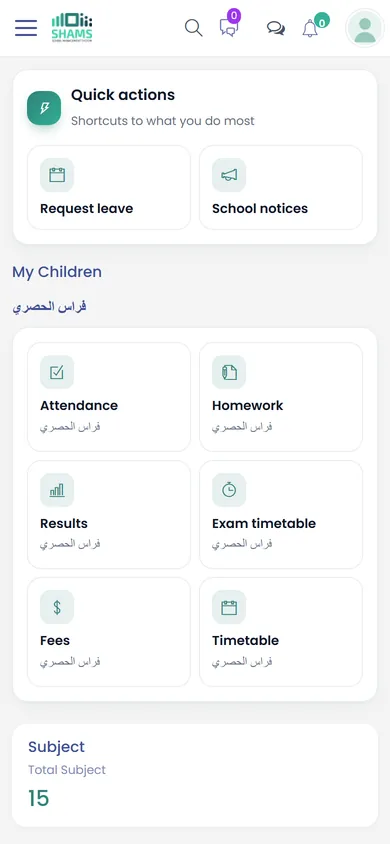
The app is the same for everyone. The role your account holds at the school decides what appears after you sign in.
Parents
- Each of their children, and only their own.
- Attendance, homework and the timetable.
- Marks and results once the school publishes them.
- Fees: what is due, paid and remaining.
- The school bus route and the school's notices.
Students
- The weekly timetable, subjects and teachers.
- Homework, and handing in their work.
- Their marks once published.
- Notices and the library.
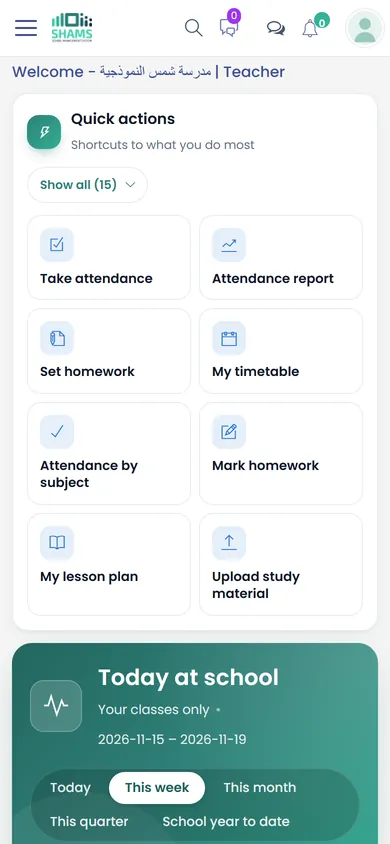
Teachers
- Their timetable and their classes.
- The homework they have set.
- The school's notices.
- Leave requests, and the school's reply.
Staff
- What their role's permissions allow, as on the administration side in the browser.
- Their own leave requests and the school's notices.
Everything also works in the browser
Shams does not depend on the app. Every account opens in any browser, on a phone, a tablet or a computer, with the same address and the same sign-in, and the browser gives you the complete account.
- On an iPhone, open your school's address in the phone's browser.
- On a computer, the office and the accounts team have the full administration side.
- Teachers can take the register on a phone between two lessons, and enter a whole section's marks on a computer.
- Text messages from the school, such as news of an absence, reach any phone without the app.
Common questions
Where do I get the app?
From your school. The school shares the Shams app with its families and staff, together with its address and your account details. Install it only from what your school gives you.
I have an iPhone. How do I sign in?
Open your school's address in the phone's browser and sign in with the same username and password. The browser gives you the complete account.
Can I create my own account in the app?
No. The school creates every account and links each child to their guardian, so nobody can register themselves. If you do not have your details yet, ask the school office.
Does the app need the internet?
Yes, it connects to your school's system to show up-to-date records. Text messages the school sends, such as news of an absence or a fee reminder, reach your phone with or without internet.
Which languages does it work in?
Arabic and English. The layout of the screen follows the language you choose.
I have forgotten my password. What should I do?
Ask the school office, which resets passwords. The school will never ask you to send your password in a message.
See Shams with your own school in mind
Book a session with our team. We walk you through Shams on screen, answer your questions and show the parts that matter to your school.